How to Unlock FMS for an individual staff in HRMS
Introduction:
HRMS is an indigenous application that helps the Organization to accumulate and maintain Human Resource data. FMS in HRMS will be a scaffolding for other HR related processes of a staff joining the organization. Every staff joining the organization must fill the details in FMS.
HR department will create user account for a new staff joining the organization. Once account is created, the joining date has to be specified in the HR page of the newly joined staff's FMS. Each newly joined staff will get a period of 15 days starting from the joining date mentioned in the HR page to fill the FMS details. Once after 15 days, the FMS pages will be locked up-on first insertion of data and the staff may need to contact the HR department for further correction / update of details.
This document describes how a HR admin Lock / Unlock FMS for an individual staff in HRMS.
Getting Started:
Access Human Resource Management System
Open an internet browser (Recommended to use Google Chrome)
Type https://my.amrita.edu/ and click enter
Login with your amrita email id and password.
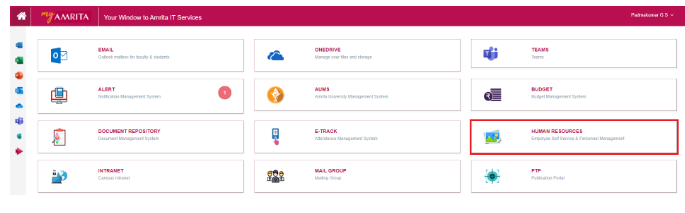
Click HUMAN RESOURCES.
Lock/Unlock FMS of a Staff:
Open Dashboard
Click GoTo at right top of the page
Select Unlock FMS Staff.

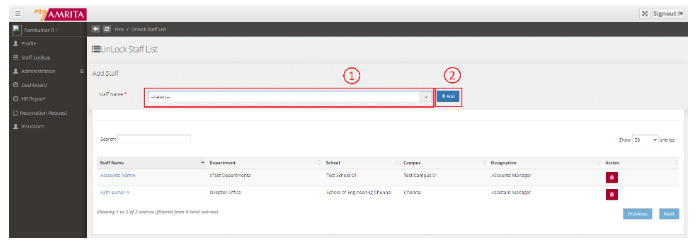
Select the Staff Name from the drop-down.
Click Add button
Staffs whose FMS is unlocked are listed below.
Lock FMS for a Staff:
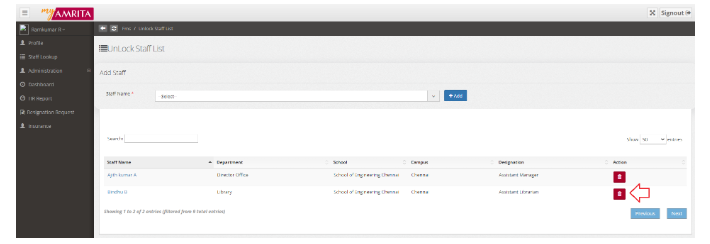
Click Trash / Delete icon corresponding the staff
Staff's FMS will get locked and the name will be removed from the Unlocked staff list.